How to Fill In a PDF Form Without Printing
Updated · 2 min read
A landlord, school or clinic sends you a PDF form, and the usual routine is print it, fill it in by hand, scan it and send it back. You can skip all of that and fill it in on your computer or phone in a few minutes.
Open Fill & Sign PDFFree, no sign-up. Your file stays on your device.
Two kinds of PDF forms
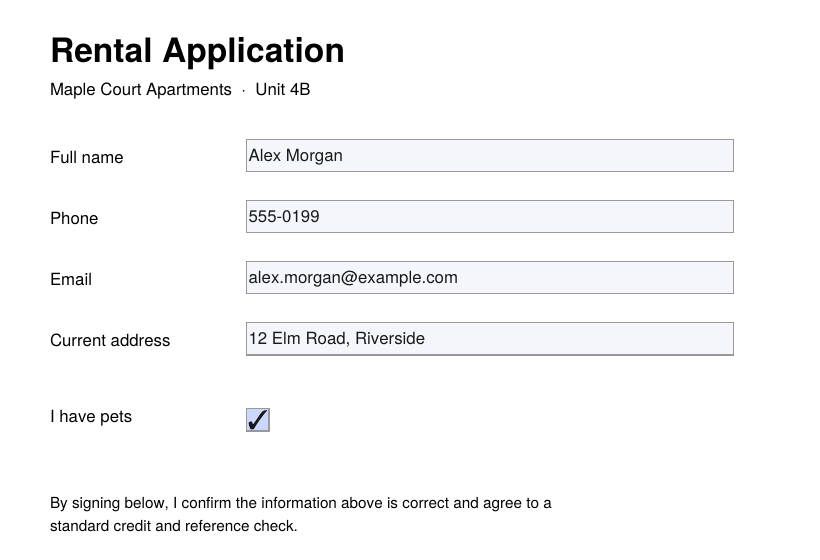
Some PDFs have real fill-in boxes built in: click a box and you can type. Others are just a picture of a form, with lines to write on. Don's Free PDF handles both.
How to fill in a PDF form
- Open Fill & Sign PDF and choose your form.
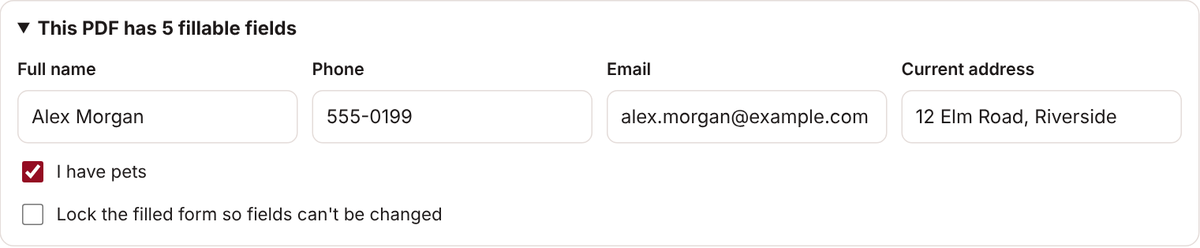
- If the form has fill-in boxes, a list appears at the top saying how many fields it has. Type your answers there and tick any checkboxes.
- If the form has no fill-in boxes, click Text, then click the page where the answer goes and type. Drag it into place by its edge.
- Add the date with Today's date, tick boxes on the page with Check, and sign with Signature… if the form needs it.
- To stop anyone changing your answers, tick Lock the filled form so fields can't be changed.
- Click Save signed PDF, then Download PDF.
Tips for tricky forms
- Field names look strange? The list uses the names the form's maker gave each box, which are sometimes just "Text1" or "Field 2". They usually follow the page from top to bottom.
- See a "Please wait..." message instead of the form? That means the PDF is a special type of form (called XFA) that only Adobe's own apps can open. Download it and open it in the free Adobe Acrobat Reader instead.
- Answer too long for its box? Shorten it, or use Text to add it on the page beside the box.
- Might need to change an answer later? Save a copy without the lock as well, so you can open it again and edit.
Common questions
Can I fill in a PDF form on my phone?
Yes. It works the same way in Safari on iPhone and Chrome on Android. See our guide to signing a PDF on iPhone or iPad.
Will the person I send it to see my answers?
Yes. Your answers are saved into the PDF, so they show in any PDF reader.
Is my information private?
Yes. The form is filled in inside your browser and never uploaded, and nothing you type is stored.
Do I still need to print it to sign?
Usually not. Many forms accept a typed or drawn signature. If a form asks for a certificate-based digital signature, check with whoever sent it.
Open Fill & Sign PDFFree, no sign-up. Your file stays on your device.