How to Sign a PDF on iPhone or iPad (Free, No App)
Updated · 2 min read
Someone emails you a form to sign, and you're nowhere near a printer. You can fill it in and sign it on your iPhone or iPad in a couple of minutes, in Safari, without installing an app or creating an account.
Open Fill & Sign PDFFree, no sign-up. Your file stays on your device.
Before you start: save the PDF to your Files app
If the PDF arrived by email, open the attachment, tap the Share button and choose Save to Files. That makes it easy to pick in the next step. PDFs already in iCloud Drive or on your iPhone are ready to go.
How to sign a PDF on iPhone or iPad
- In Safari, open Fill & Sign PDF and tap to choose your PDF.
- If the form has fill-in boxes, they appear in a list at the top. Type your answers there.
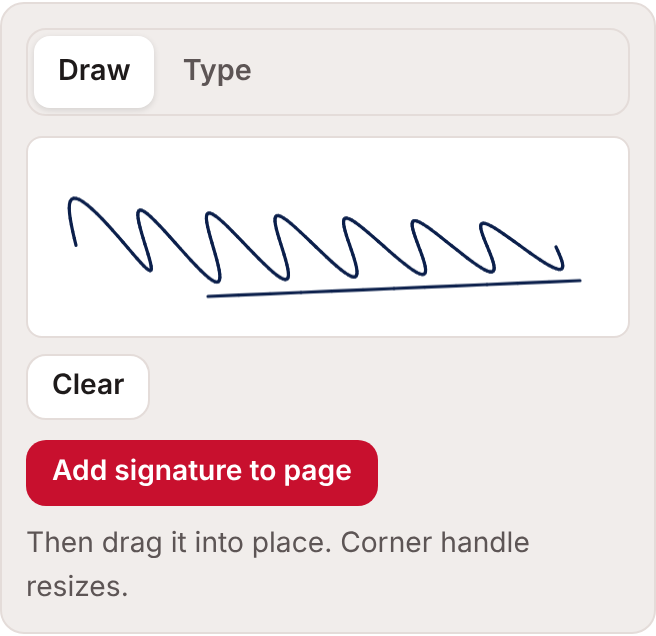
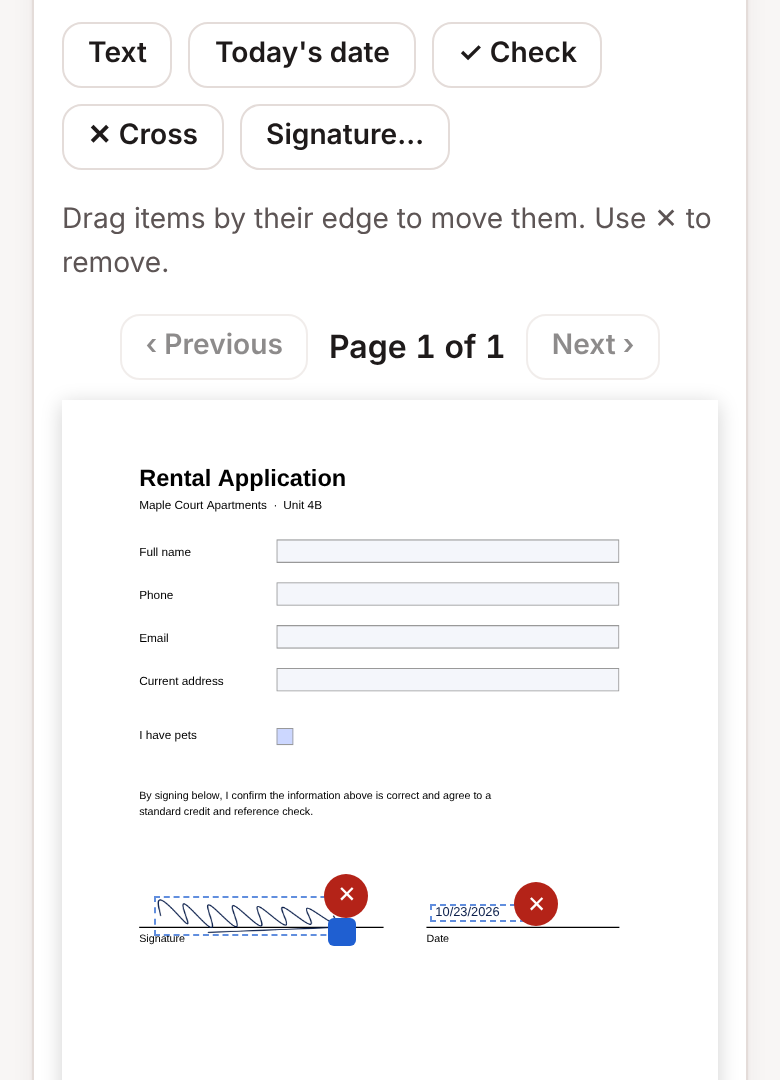
- Tap the Signature… button. Choose Draw and sign with your finger or Apple Pencil, or choose Type and type your name.
- Tap Add signature to page, then tap the page where the signature should go.
- Drag the signature by its edge to move it. Drag the blue corner handle to make it bigger or smaller.
- Need the date? Tap Today's date and tap the page where it goes. Use Text, Check or Cross for anything else.
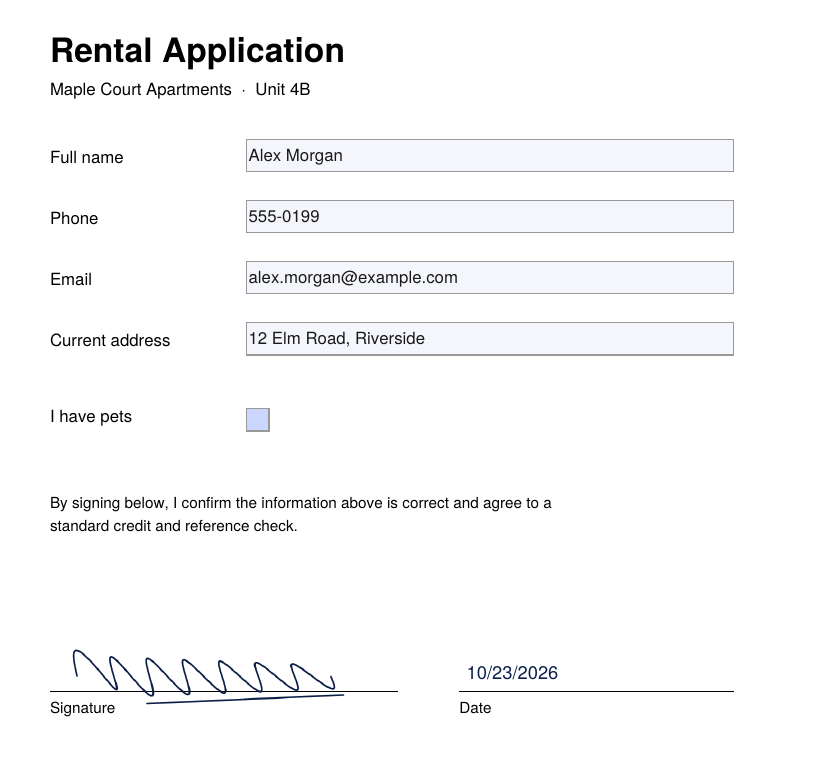
- Tap Save signed PDF, then Download PDF.
Where is my signed PDF?
Safari saves downloads to the Downloads folder in the Files app. You can also tap the download arrow in Safari's address bar to open it straight away. From there, tap Share to email it or send it in a message.
Is this signature legally valid?
This is a visual signature: a picture of your handwriting placed on the page, the same as signing paper and scanning it. Many everyday forms, such as rental applications, permission slips and delivery forms, accept a signature like this. It is not a certificate-based digital signature, so it doesn't prove who signed or show if the file is changed later. If a document asks for a "digital signature" or a specific signing service, check with the sender. Rules differ by country and by type of document.
Tips
- Turn your phone sideways for a wider signature box.
- On iPad, an Apple Pencil gives the most natural-looking signature.
- Your signature is never stored or uploaded. It exists only while the page is open.
- Prefer an app? The Files app's Markup tool can also add a signature. Don's Free PDF adds form filling, dates and checkmarks in one place.
Common questions
Do I need to install anything?
No. It works in Safari on iPhone and iPad with iOS or iPadOS 16 or newer.
Can I sign a PDF someone sent me on WhatsApp or Messages?
Yes. Open the file, tap Share, choose Save to Files, then follow the steps above.
Open Fill & Sign PDFFree, no sign-up. Your file stays on your device.