How to Combine PDFs on iPhone or iPad (Free, No App)
Updated · 2 min read
Job applications, visa forms and expense claims often ask for a single PDF, but you have a cover letter, a resume and a few more documents as separate files. Here's how to join them on your iPhone or iPad in about a minute.
Open Merge PDFsFree, no sign-up. Your file stays on your device.
Before you start: put the PDFs in the Files app
If a PDF came by email or message, open it, tap the Share button and choose Save to Files. PDFs already in iCloud Drive or on your iPhone are ready to go.
How to combine PDFs on iPhone or iPad
- In Safari, open Merge PDFs and tap Choose PDF files.
- Select all the PDFs you want to combine. You can add more later.
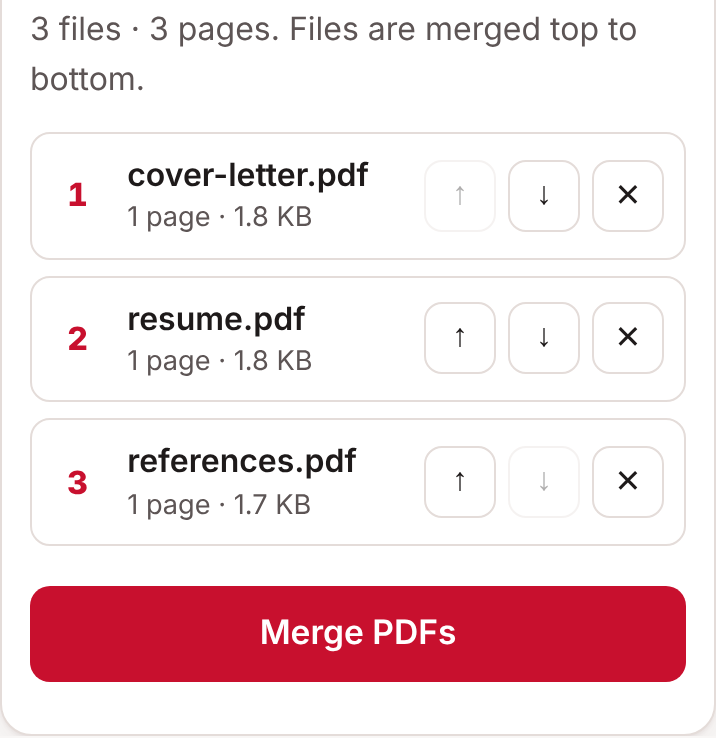
- Put them in order with the up and down arrows. Files are joined from top to bottom. Tap ✕ to remove one.
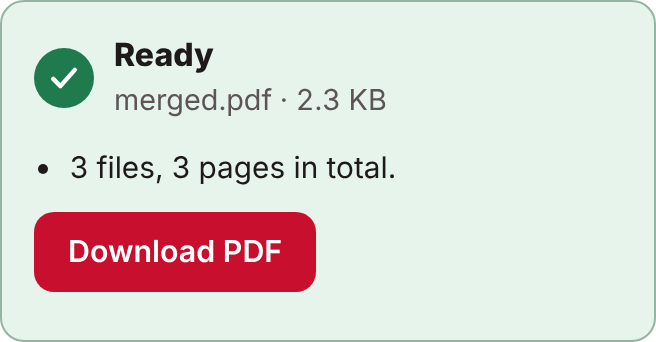
- Tap Merge PDFs, then Download PDF.
- Find the combined file in the Downloads folder of the Files app.
Tips
- Start file names with numbers (1-cover-letter, 2-resume) so they're easy to put in order.
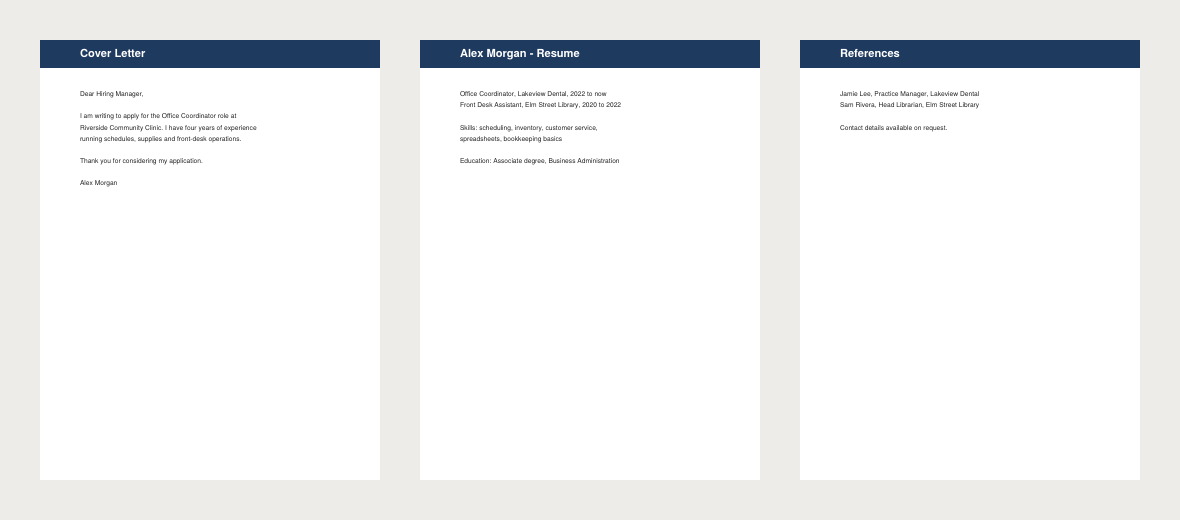
- Merging doesn't change quality. Pages are copied exactly as they are, and text stays selectable.
- If the combined file is too big to email, see our guide to compressing a PDF for email.
- To remove or move single pages, open the combined file in Organize pages.
Common questions
Is there a limit on how many PDFs I can combine?
No set limit. Very large batches depend on your device's memory, so a computer handles big jobs better than a phone.
Can I combine password-protected PDFs?
Remove the password first by opening the file in a PDF reader and saving a copy without it, then combine the copy.
Can I do this without a website?
Yes. In the Files app, select the PDFs, tap the More button and choose Create PDF. It joins files in name order, so rename them first if the order matters. Don's Free PDF lets you set the order on screen and works the same on Android and computers.
Are my files uploaded?
No. The PDFs are combined inside your browser and never leave your device.
Open Merge PDFsFree, no sign-up. Your file stays on your device.