How to Delete, Reorder or Rotate Pages in a PDF
Updated · 1 min read
A scanned report with a blank page in the middle, a chart that came out sideways, an appendix in the wrong place: these are some of the most common PDF problems, and you can fix them all on one screen.
Open Organize pagesFree, no sign-up. Your file stays on your device.
How to delete, reorder or rotate PDF pages
- Open Organize pages and choose your PDF. You'll see a large preview of every page.
- To delete a page, click its bin button. Deleted by mistake? Click Undo delete.
- To move a page, drag it to a new spot, or use the left and right arrow buttons under it.
- To rotate a page, click its rotate button. Each click turns it a quarter turn clockwise.
- Click Save new PDF and download the result.
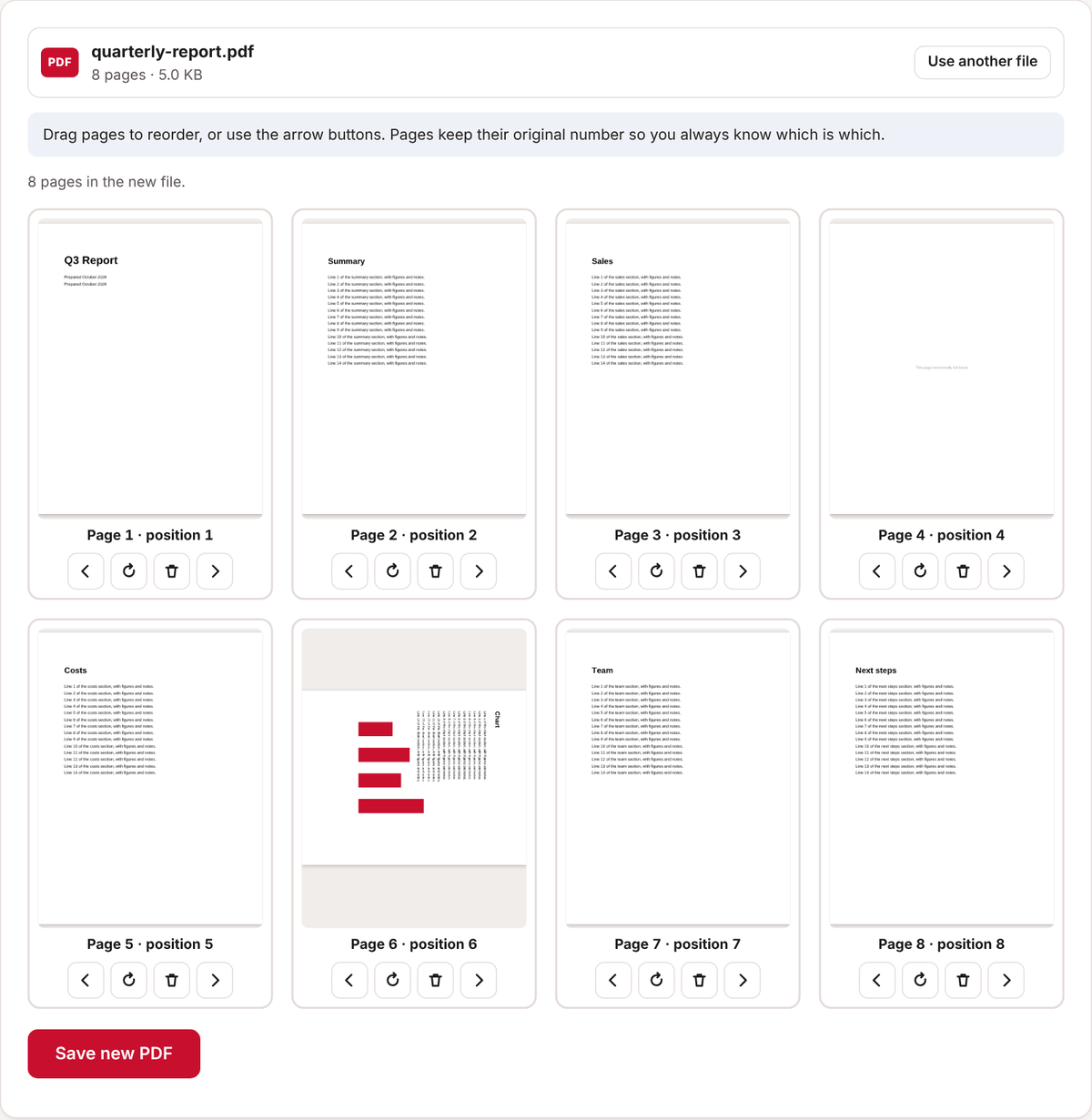
Each page keeps its original page number on its label, so similar-looking pages are easy to tell apart after you move them around.
Only need a few pages?
If you want to keep just one or two pages out of a long document, such as the signed page of a contract, use Extract & split pages instead. Type the page numbers you want, like 1-3, 5, and save them as a new PDF. It can also split every page into its own file.
Common questions
Will this lower the quality?
No. Pages are moved, rotated or removed without being redrawn, so text stays sharp and selectable.
Is rotating permanent?
Yes. The saved PDF opens with the pages turned the right way in every PDF reader.
Can I combine pages from different PDFs?
Yes. Join them first with Merge PDFs, then open the merged file in Organize pages to put everything in order.
Does it work on a phone?
Yes. On a small screen the pages are shown one per row. Use the arrow buttons to move pages if dragging is fiddly.
Open Organize pagesFree, no sign-up. Your file stays on your device.