How to Split a PDF into Separate Pages (Free, No Upload)
Updated · By Don · 2 min read
An upload form wants only page 3 of your statement. Or you scanned twenty receipts into one file and need each one on its own. Either way, you need to split the PDF. Here's how to pull out just the pages you need, or turn every page into its own PDF, for free and without uploading the file anywhere.
Open Extract & split pagesFree, no sign-up. Your file stays on your device.
Two ways to split a PDF
- Keep some pages as one new PDF. For example, pages 2 to 4 of a report, or the signed page of a contract.
- Save each page as its own PDF. For example, one file per receipt or per form. The pages arrive together in one ZIP file.
Either way, your original PDF stays exactly as it was.
How to pull out certain pages
- Open Extract & split pages on Don's Free PDF and choose your file. Every page is shown as a small preview.
- Tap the pages you want, or type their numbers under Pages to keep. Use commas and dashes: 2-4 means pages 2, 3 and 4, 1, 3, 5-7 picks a mix, and 8- means page 8 to the end.
- Under Output, leave One PDF selected.
- Click Extract pages, then Download PDF.
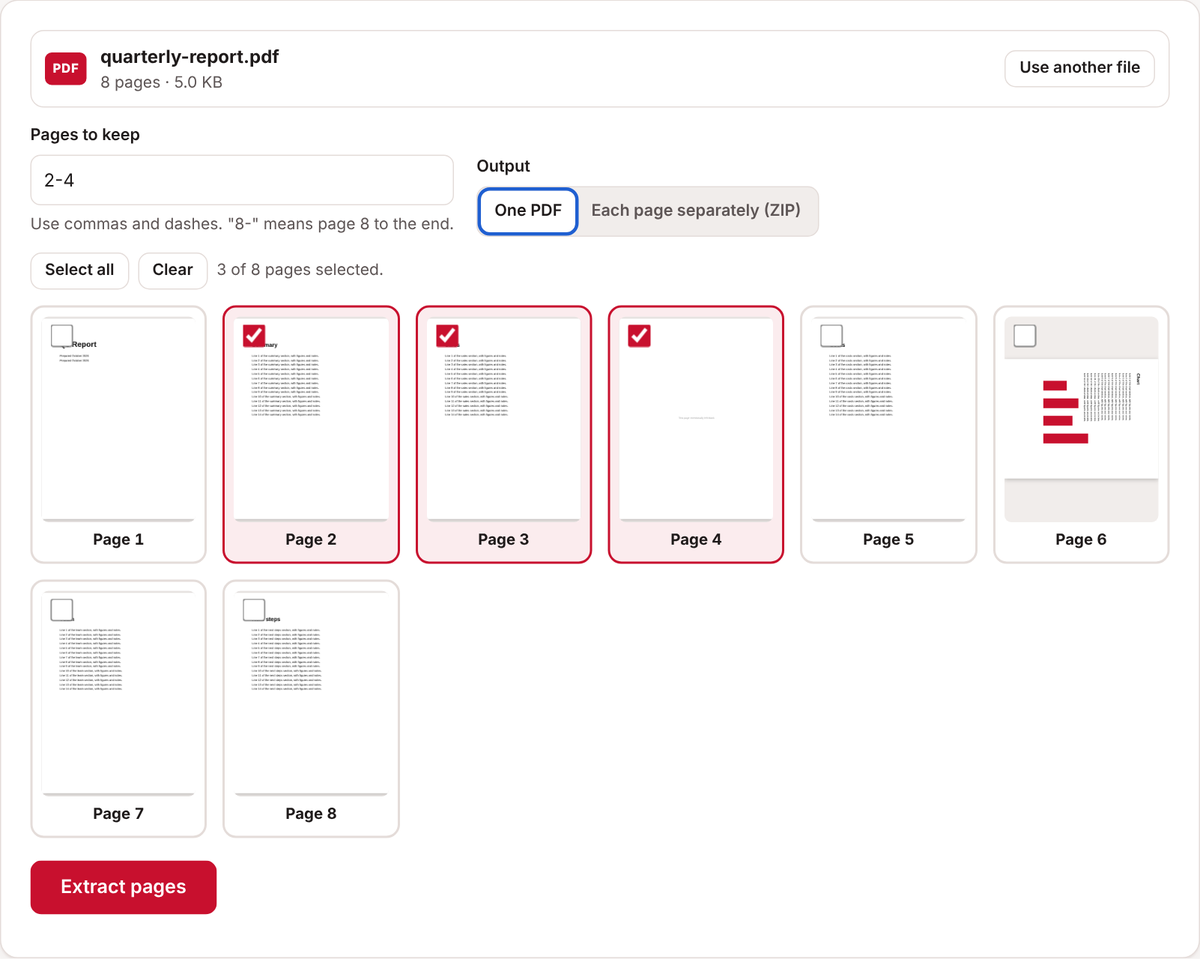
How to split every page into its own PDF
- Open your file in Extract & split pages.
- Click Select all, or pick just the pages you want as separate files.
- Under Output, choose Each page separately (ZIP).
- Click Extract pages, then Download ZIP.
- Open the ZIP to get the files. On Windows, right-click it and choose Extract All. On a Mac, double-click it. On an iPhone or iPad, tap it in the Files app.

Tips
- To remove a few pages and keep the rest, it's easier to use Organize pages. See how to delete pages from a PDF.
- To put pages back together later, use Merge PDFs.
- If a file is too big to upload even after splitting, see why your PDF is so big.
Common questions
Does splitting lower the quality?
No. Pages are copied exactly as they are, so text stays sharp and selectable, and nothing is redrawn.
Can I split a PDF on my phone?
Yes. It works the same way in Safari on iPhone and Chrome on Android. The ZIP option is handy on a computer; on a phone, saving one PDF of the pages you need is usually simpler.
Is there a page limit?
No set limit. Very long documents depend on your device's memory, so a computer handles them more easily than a phone.
Can I do this without a website?
On a Mac, yes: open the PDF in Preview, show the thumbnails, and drag the pages you want to the desktop to make a new PDF. Don's Free PDF works the same way on Windows, Android, iPhone and Mac, and can split every page at once.
Are my files uploaded?
No. The PDF is split inside your browser and never leaves your device.
Open Extract & split pagesFree, no sign-up. Your file stays on your device.